7 min read
Automatic annotation tool
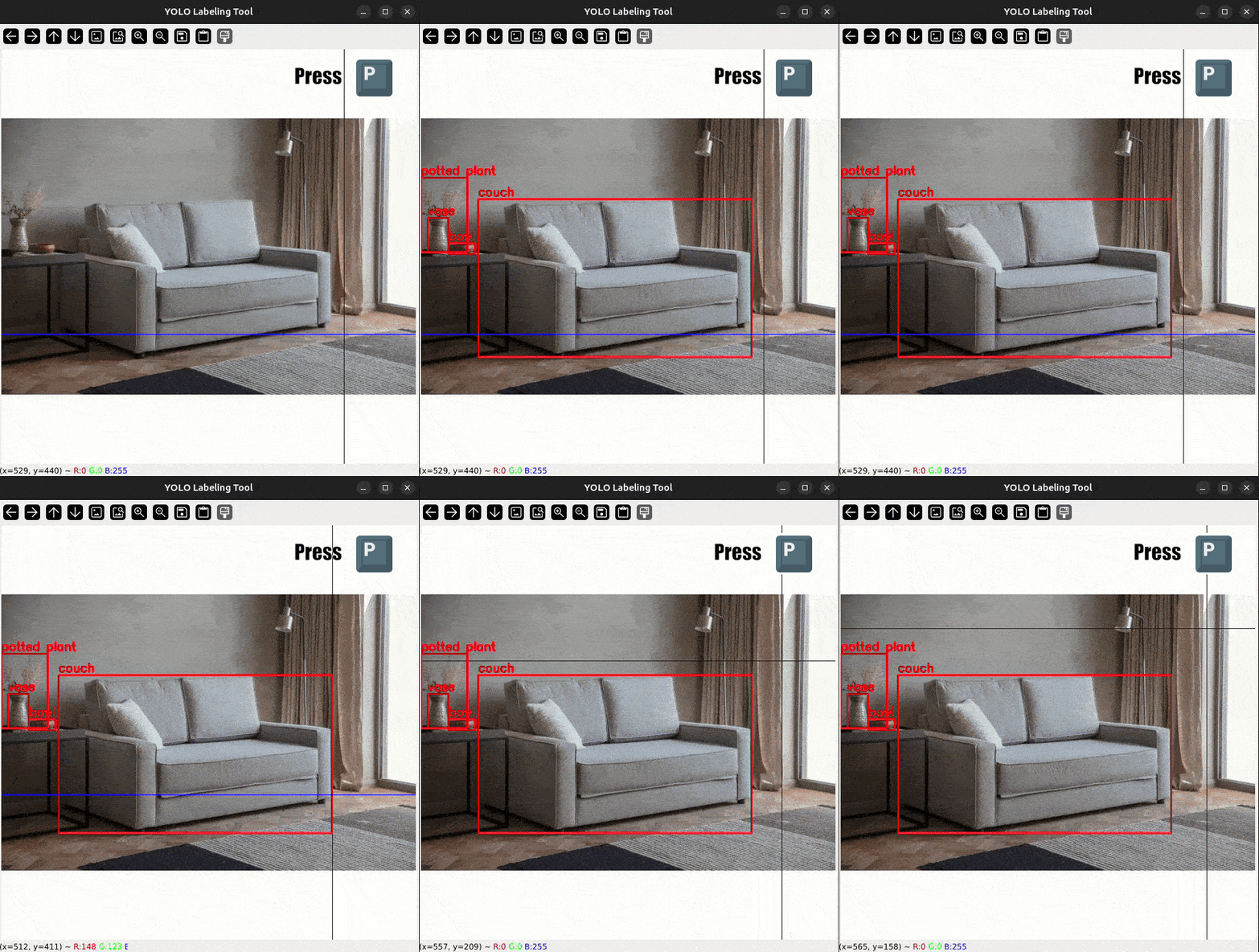
Object detection projects often require manually labeling hundreds or even thousands of images, which can be a time‐consuming and tedious task. This Automatic Annotation Tool streamlines that workflow by combining a quick manual labeling process with on‐the‐fly predictions from a pretrained model. With just a few hotkeys, you can seamlessly switch between manual labeling and automatic annotation, making your labeling process more efficient and accurate.
Why Use This Tool?
- Speed & Efficiency:
- Auto‐annotate multiple objects with a single key press (
p), instead of drawing every bounding box by hand. - Quickly remove or correct any incorrect labels, rather than having to start from scratch.
- Auto‐annotate multiple objects with a single key press (
- Flexible Labeling:
- Press numeric keys (like
1,2, etc.) to switch classes (e.g., person, chair) and draw bounding boxes manually. - If the model misses something, just add it manually with a few clicks.
- Press numeric keys (like
- User‐Friendly Hotkeys:
p: Run the pretrained model to automatically predict bounding boxes.r: Remove the most recent bounding box if incorrect.f/d: Move forward or back through dataset images.- And more, all configurable in the script.
- Integration With YOLO:
- Built on top of the Ultralytics YOLO framework, making it straightforward to swap in new or custom models.
- Significant Time Savings:
- By letting a model do the bulk of the work, you only need to fine‐tune or correct labels.
- In many cases, auto annotation can save up to 70–80% of the time you’d spend labeling from scratch.
How It Works
1. Start the Tool
Provide the folder path containing your images and an output folder for the label files. The script automatically loads any existing labels so you can pick up where you left off.
2. Manual Labeling
Press a numeric hotkey (e.g., 2 for “chair”) to set the current label class. Draw bounding boxes with the mouse (click‐and‐drag). The bounding boxes get saved in YOLO format (.txt files).
3. Automatic Annotation
Press p to run the pretrained model. The tool immediately adds bounding boxes for all detected objects. You can remove or correct any boxes if they’re inaccurate or missing.
4. Navigating Images
Press f to move forward to the next image. Press d to go back to the previous image. Labels are saved automatically every time you switch images.
5. Removing Labels
If a bounding box is incorrect, press r to remove the last box added. This can be repeated to remove multiple boxes in reverse order.
Examples in Action
Below are three example scenarios, demonstrated with GIFs.
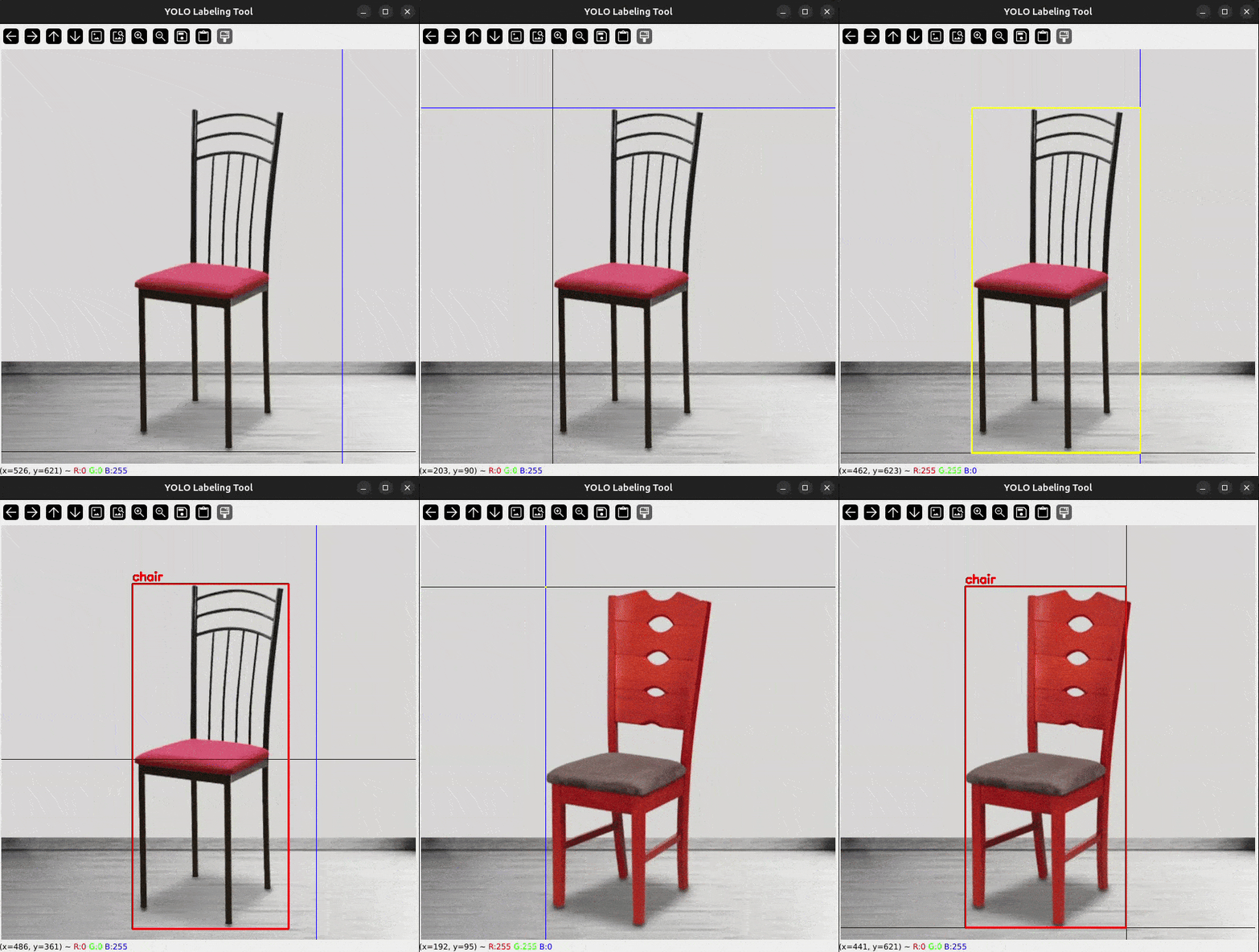
In this GIF, I pressed the numeric key for "chair" and drew a bounding box around it manually.
In this GIF, I pressed p to let the model predict all objects. It missed the lamp in the background, so I manually added that label by drawing a bounding box.
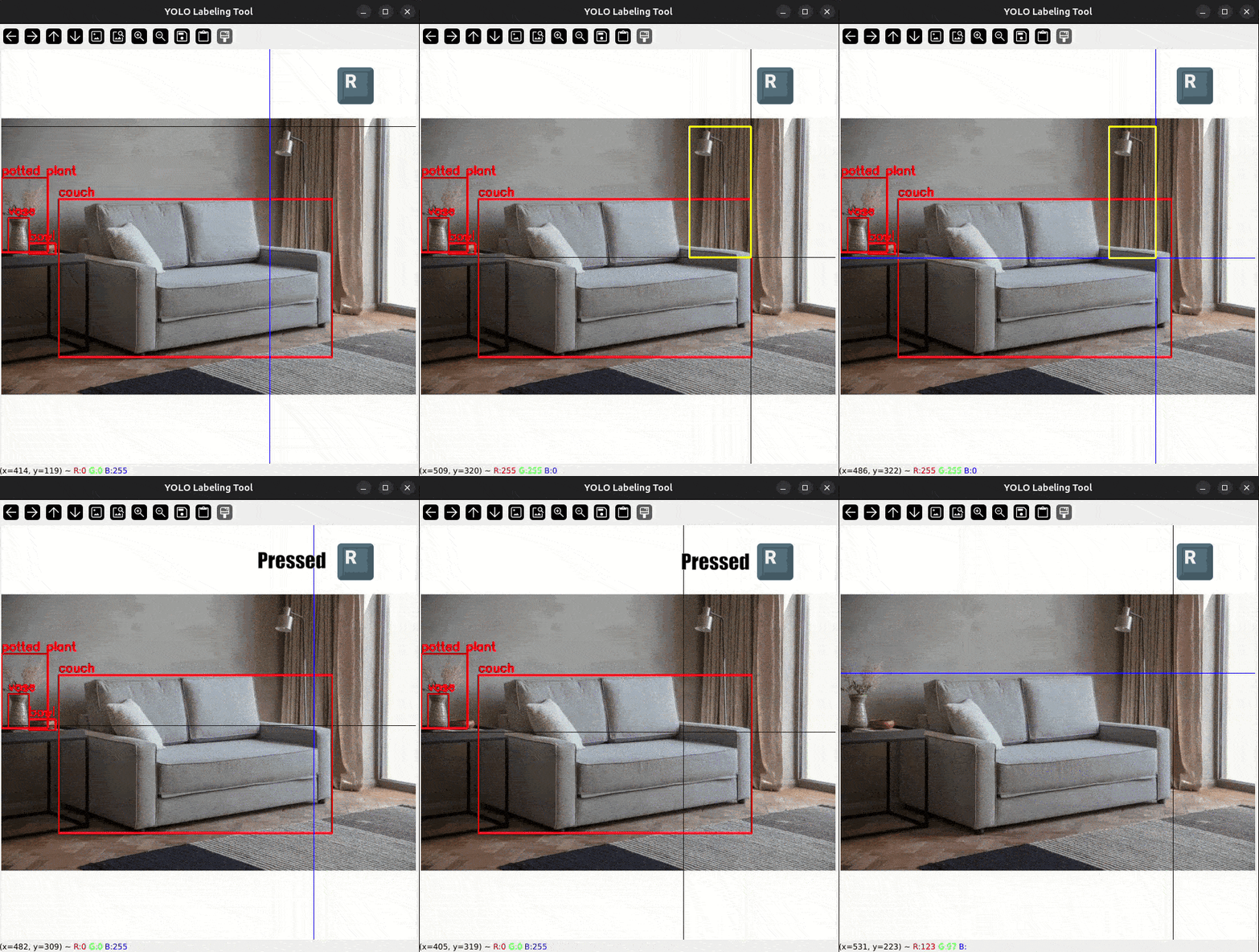
In this GIF, I pressed r to remove the last bounding box that was added (the red bounding box).
Benefits & Time Savings
- High Throughput: Automatic annotation drastically reduces the time needed for labeling large datasets.
- Improved Accuracy: Even if the model isn’t perfect, it’s often accurate enough to handle repetitive tasks. Human labelers then only correct minor mistakes.
- Rapid Iteration: As you improve your model, you can re‐run the tool on the same images, refining labels with each iteration.
By combining manual checks with model predictions, you maintain control over quality while cutting down on the drudgery of drawing each bounding box yourself. This approach is especially useful for large‐scale or repetitive labeling tasks, where automation can handle the bulk of the work.
Conclusion
This Automatic Annotation Tool offers a convenient workflow to balance speed and accuracy. Whether you’re a researcher needing quick dataset labeling or a developer refining a production‐ready model, this tool’s manual + automated hybrid approach can save you countless hours. Give it a try, customize the hotkeys, load in your own model, and watch your annotation speed increase dramatically!